 Quote
Published
·
5 min read
Quote
Published
·
5 min read
How to set up Quote for success
Quote earns its keep by chasing deals so you don't have to. Spend ten minutes setting it up properly and it goes from an empty pipeline to a CRM that nudges you the moment a deal starts to go cold.
Quote is a quote-to-cash CRM built for one person: capture a lead, do the site visit, send the quotation, chase the decision, confirm the project, get paid, close. Its whole job is to remember the follow-ups you'd otherwise forget. Set it up once, the right way, and it runs on its own. Here's how.
Create your account
Open whatiquoted.com on your phone and tap Create my account. There's no email, no password, and nothing to verify — you're in within seconds.
While you're here, add Quote to your home screen so it opens like a real app and can send you notifications later.
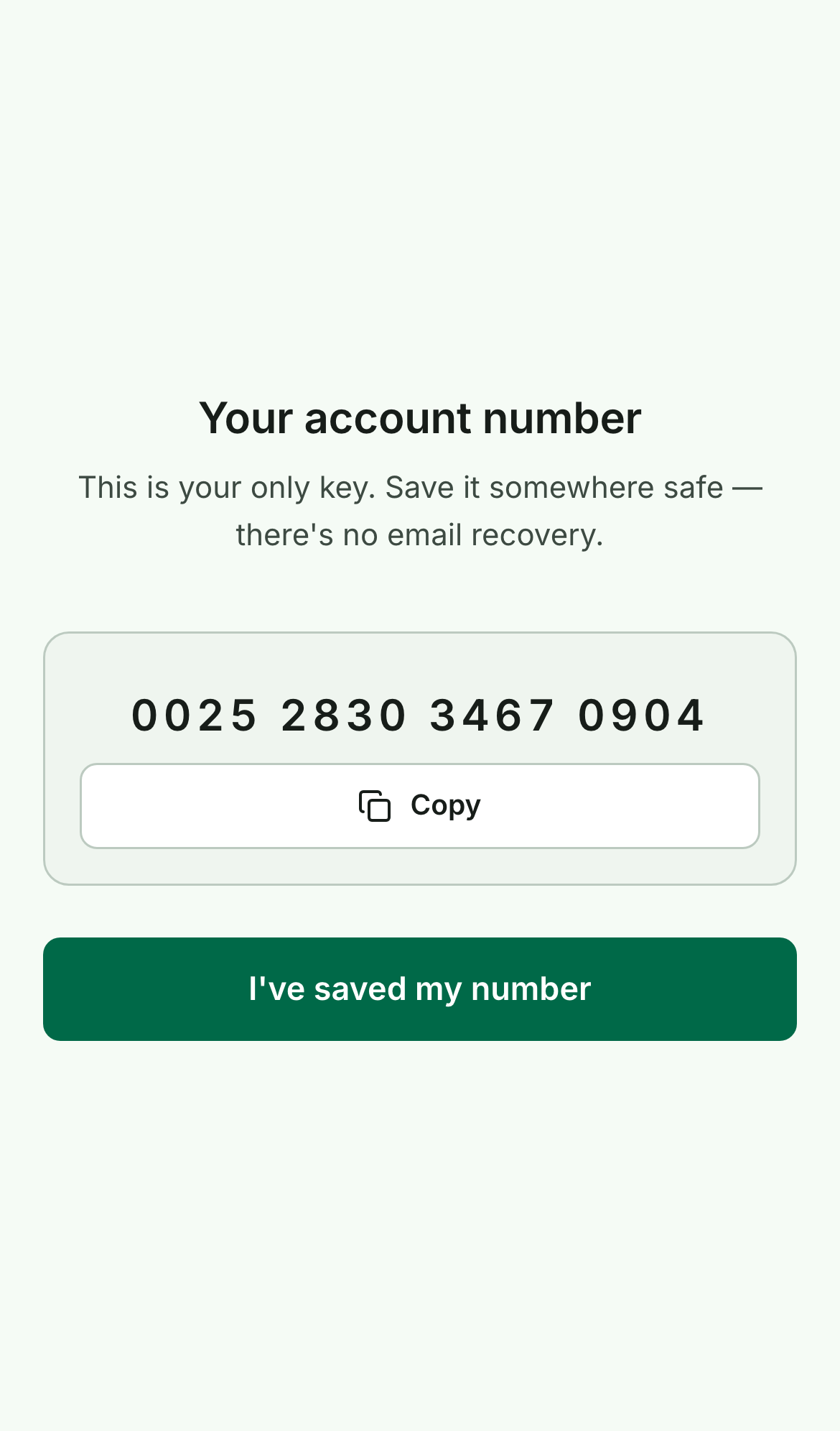
Save your account number
Because there's no email or password, your 16-digit account number is your only key — and there's no recovery if you lose it. Tap Copy and paste it somewhere you trust: a password manager, or a note you won't delete.
This is also how you sign in on a second device — phone and laptop, say. Once it's saved, tap I've saved my number.
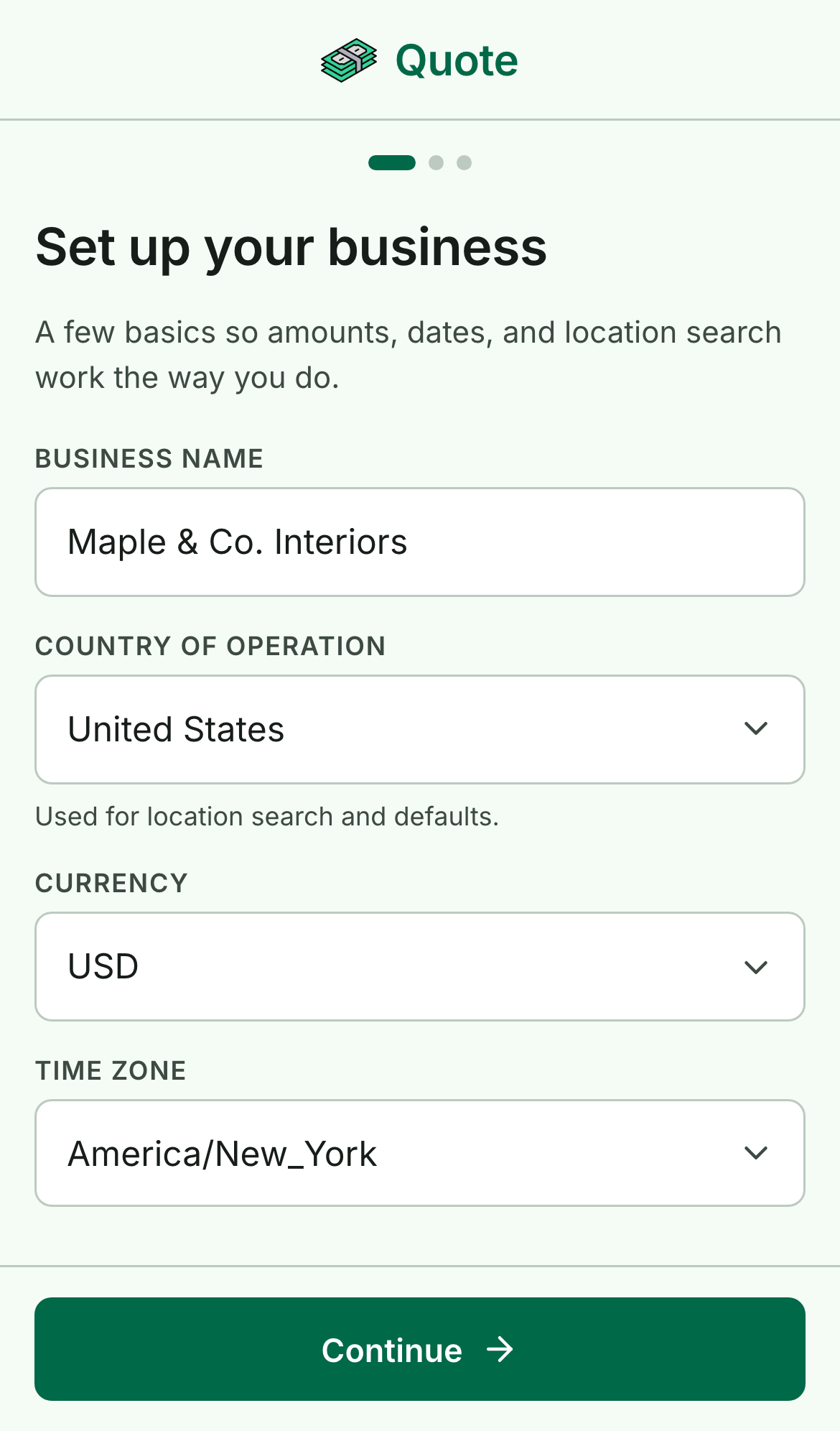
Set up your business
A few basics so the app speaks your language. Each one quietly powers something:
- Business name — labels your workspace.
- Country — drives the area / locality search when you add a lead.
- Currency — formats every amount across the app ($, €, ₹, and more).
- Time zone — makes reminders fire at the right local hour, not the middle of the night.
Quote guesses sensible defaults from your device, so usually you just confirm and tap Continue.
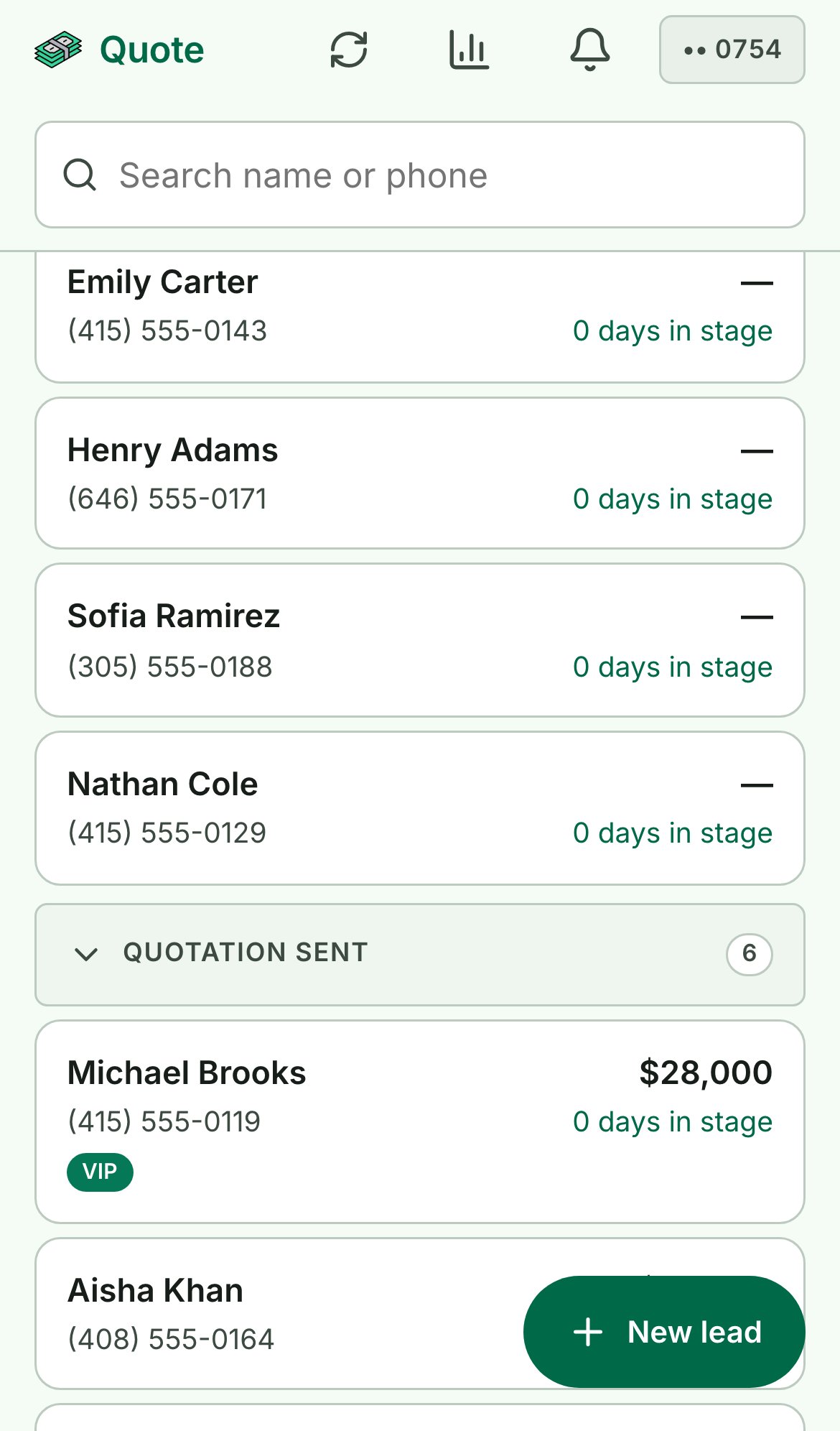
Meet your pipeline
This is home. Every deal lives in exactly one of six stages — New lead → Site visit done → Quotation sent → Project confirmed → Payment paid → Closed — and each card shows the customer, the amount, and how many days it's been sitting where it is.
Search by name or phone up top; the New lead button sits bottom-right, always within thumb's reach. When a deal goes overdue, it gets a badge here so nothing slips quietly to the bottom.
Add your first lead
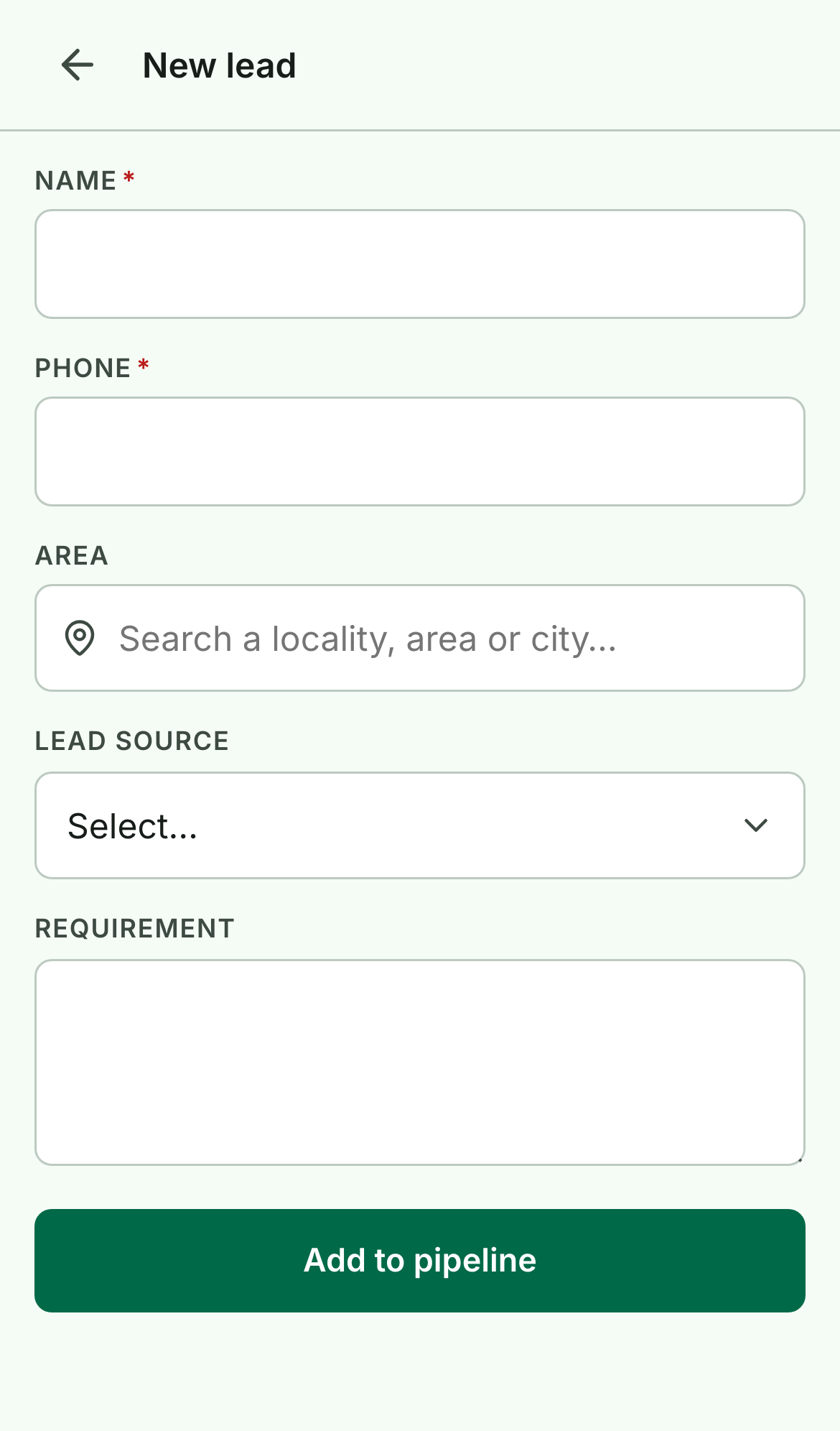
Tap New lead and capture what you know. Only name and phone are required — the rest (area, lead source, a note on what they want) takes seconds and pays off later in your funnel. Tap Add to pipeline and it lands at New lead, clock running.
The habit that makes Quote work: log every enquiry the moment it comes in, even the lukewarm ones. A lead you didn't enter is a follow-up the app can't remind you about.
Dial in your reminders
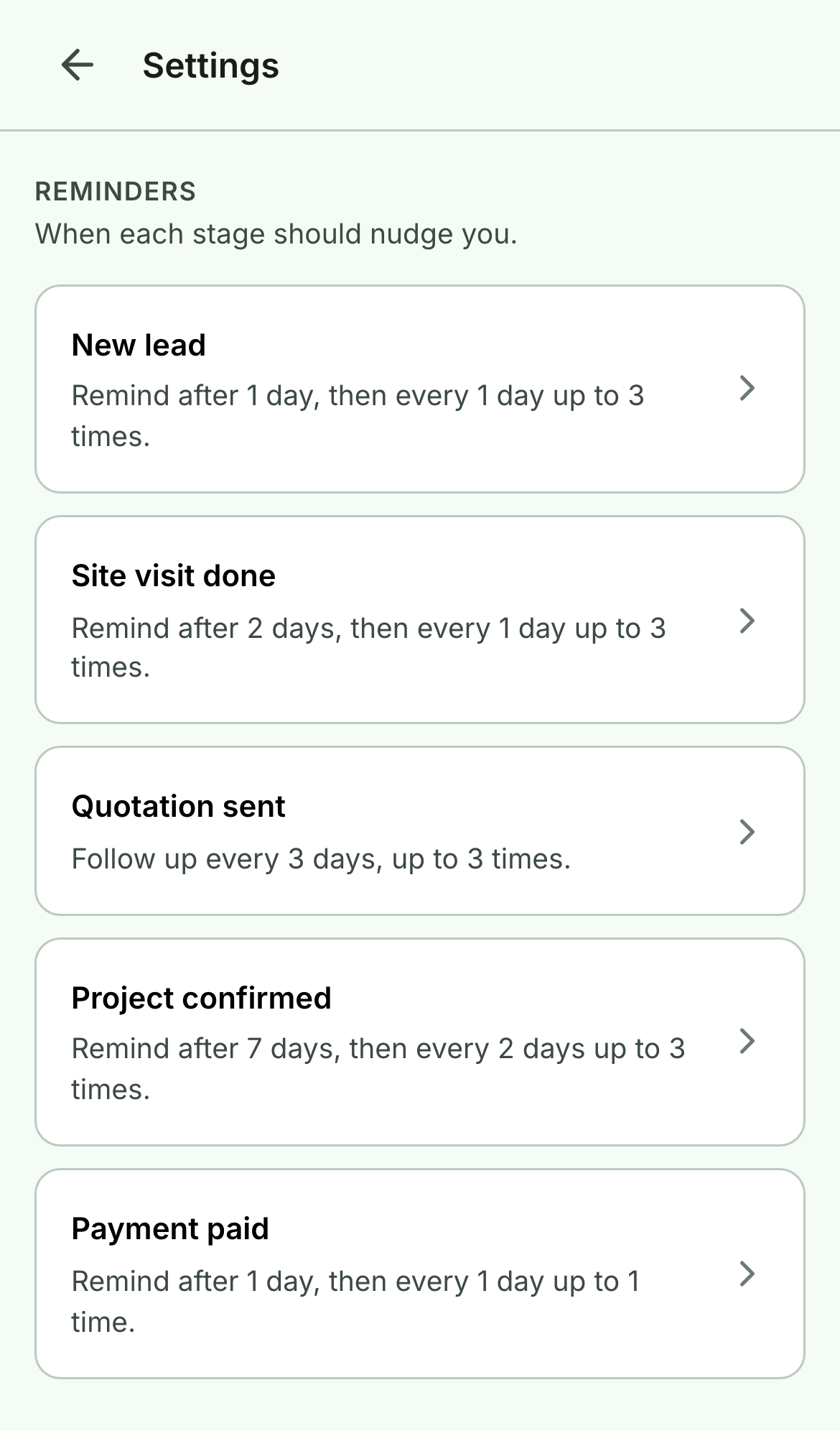
This is the step that turns Quote from a list into a system. Open Settings → Reminders. Each stage has its own nudge policy, written in plain English so you can read it at a glance — "Follow up every 3 days, up to 3 times."
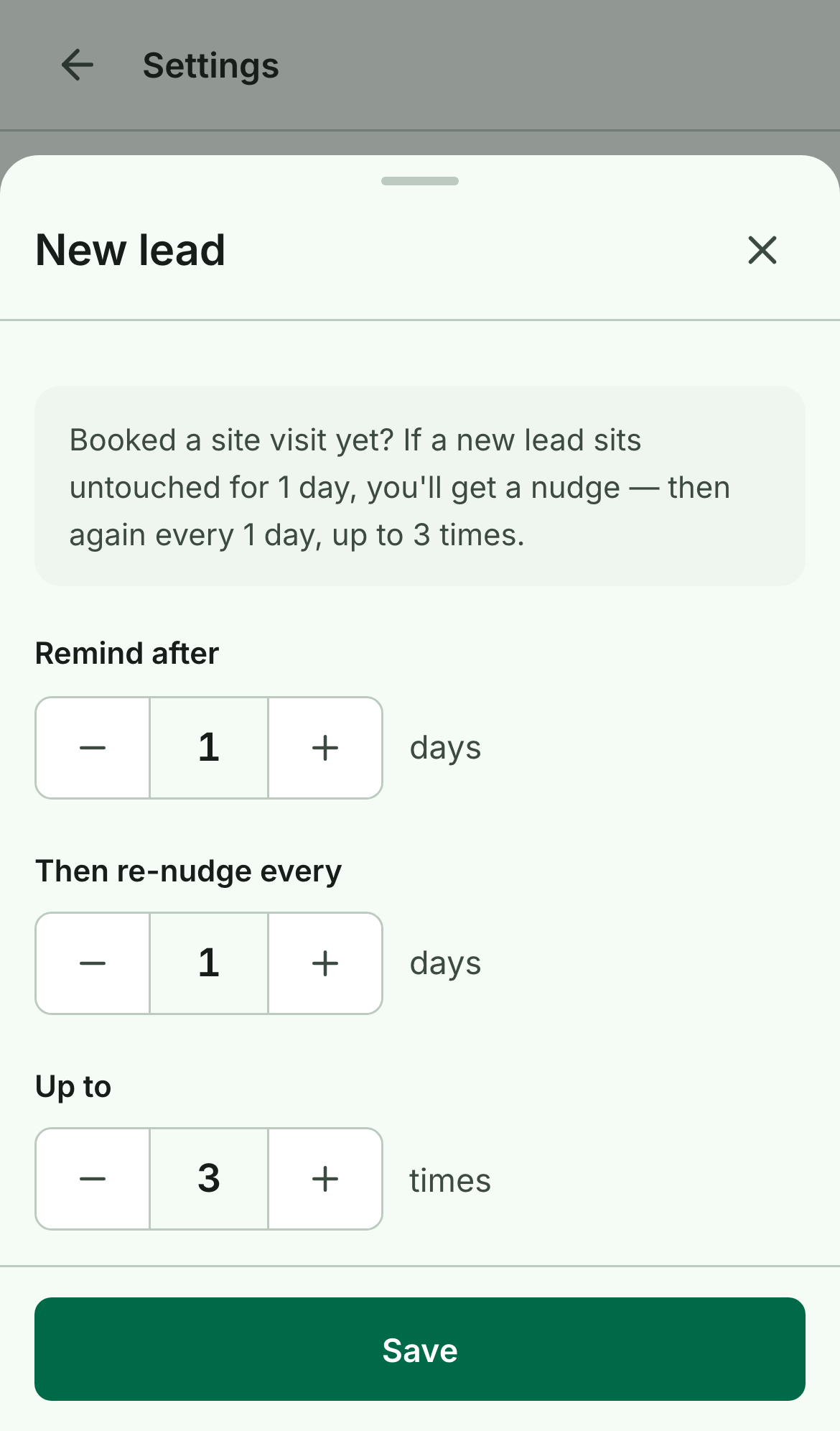
Tap any stage to open its editor. Three simple steppers — remind after, then re-nudge every, and up to N times — with a live preview sentence so you always know exactly what you're setting. The defaults are well-judged (a new lead nudges after a day; a sent quotation chases every three days, three times), so tune only what doesn't match how you actually work, then Save.
Now let it work
Setup's done. From here your only job is to keep deals moving: Advance a deal when something happens, Log payments as they land, and Mark lost when one dies (with a reason, so your numbers stay honest).
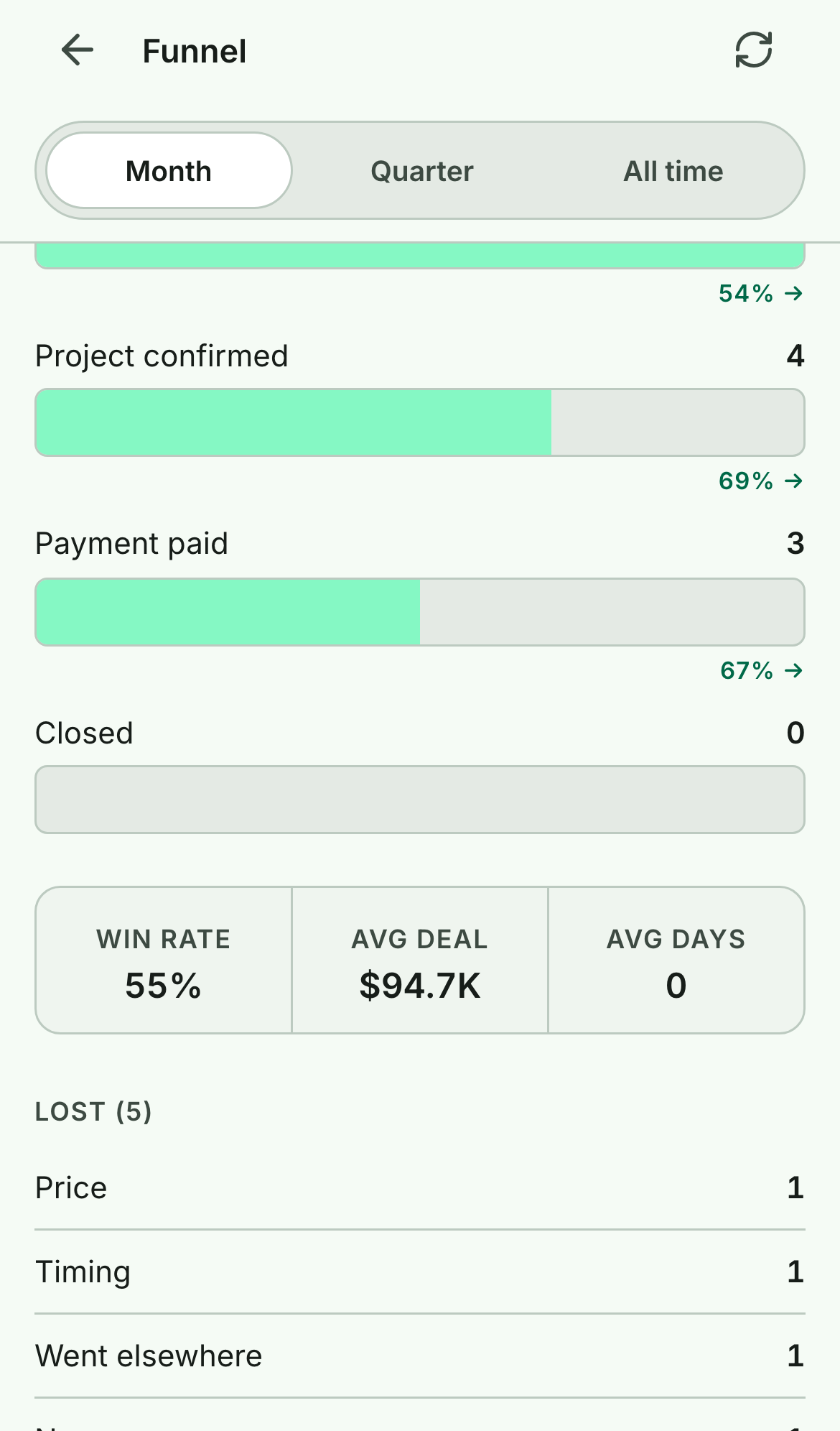
In return, Quote shows you where you stand. The Funnel lays out conversion between stages, your win rate, average deal size, and where deals leak. And Needs attention — backed by a push to your phone — tells you exactly what to chase today. No spreadsheet, no sticky notes.
That's the whole trick. The discipline was never remembering to follow up — it's logging each deal once and letting Quote do the chasing.